VIRA Tools / VIRA Hotspot Pro
Share your Internet. Without the networking headache.
Pick the connection, pick a profile, press Start, scan the QR code. VIRA checks that Windows really did it, and tells you in plain words when it did not.
Buy now, $19.99 once Get the free 7-day trial How it works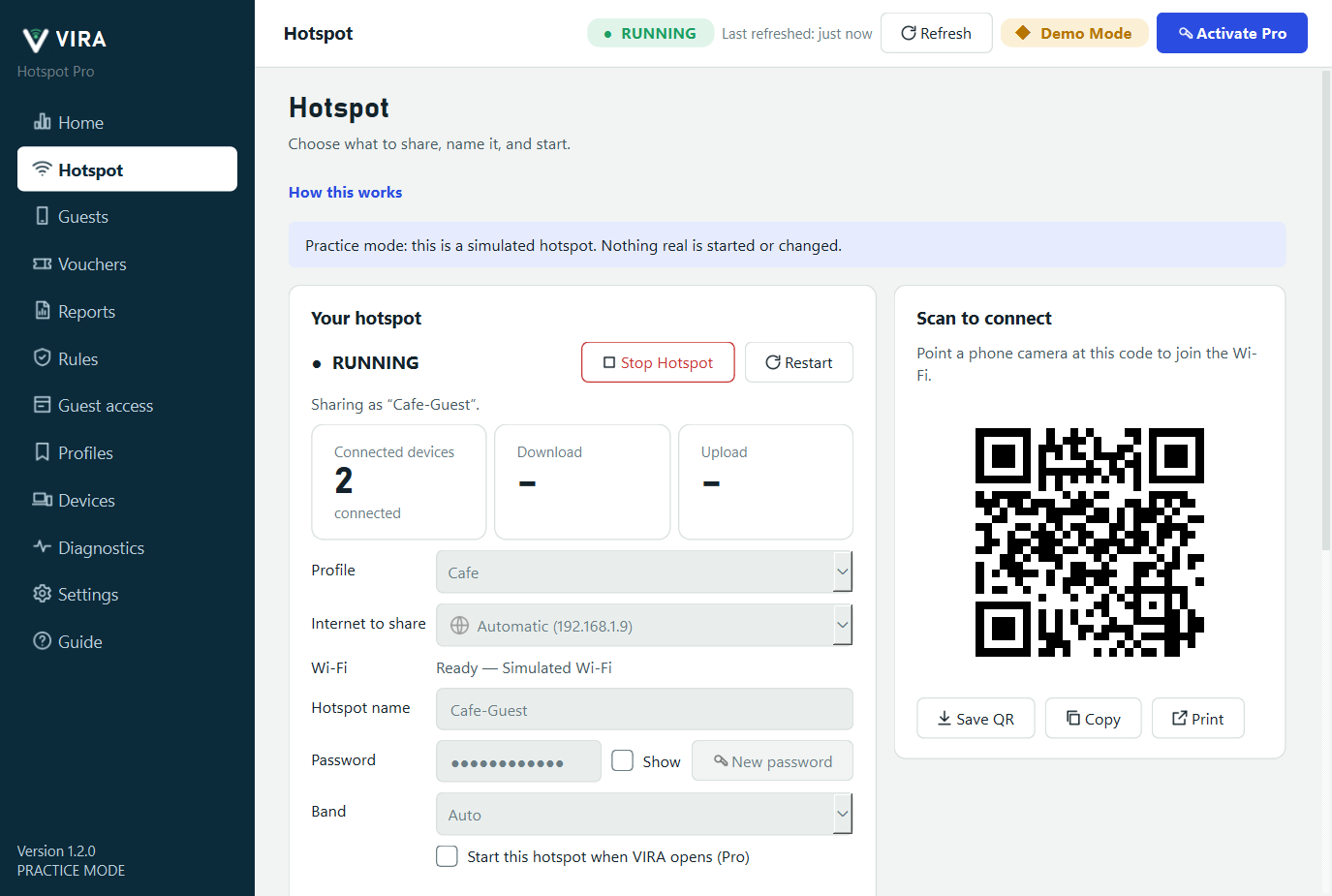
What you get
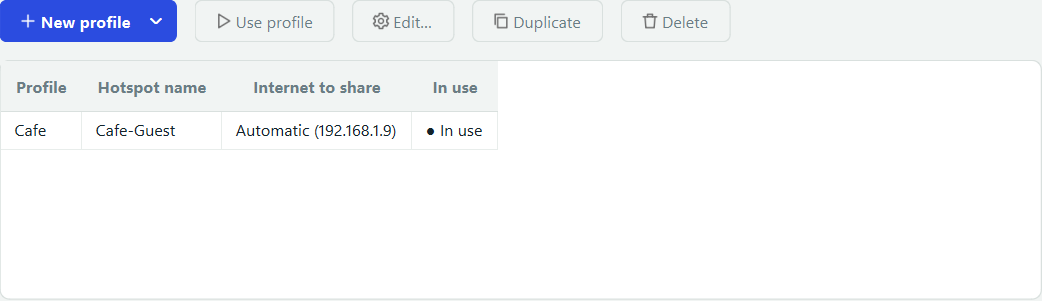
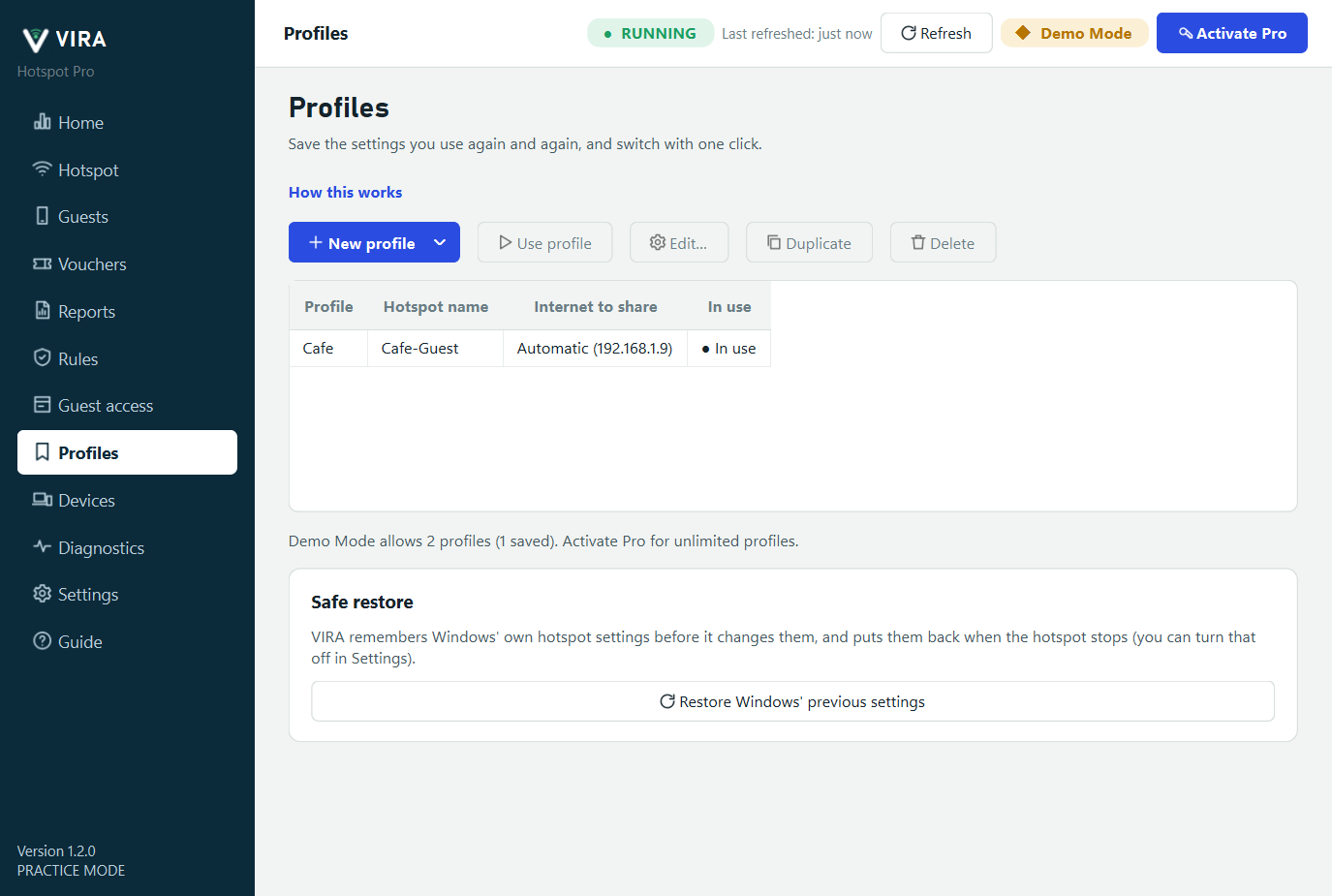
Profiles
Home, Office, Travel, Event and Guest: reuse a name, password and Internet source in one click.
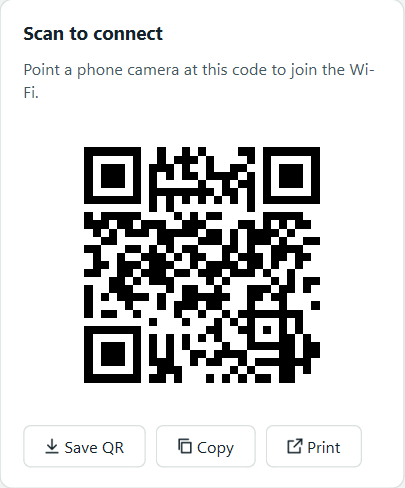
QR code
Nobody types the Wi-Fi password. Save, copy or print the code.
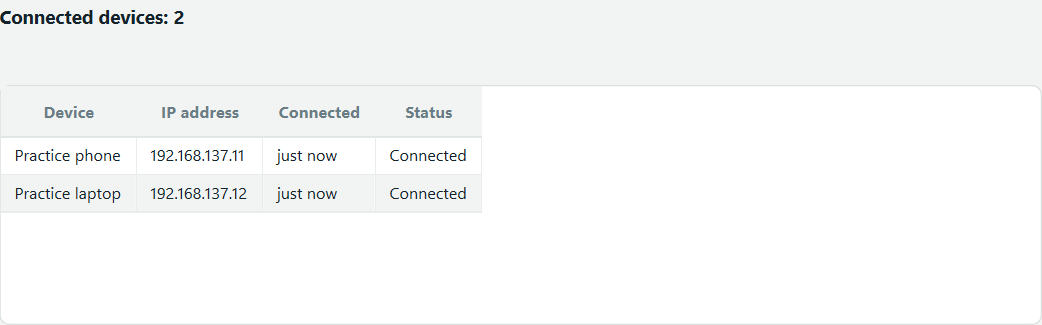
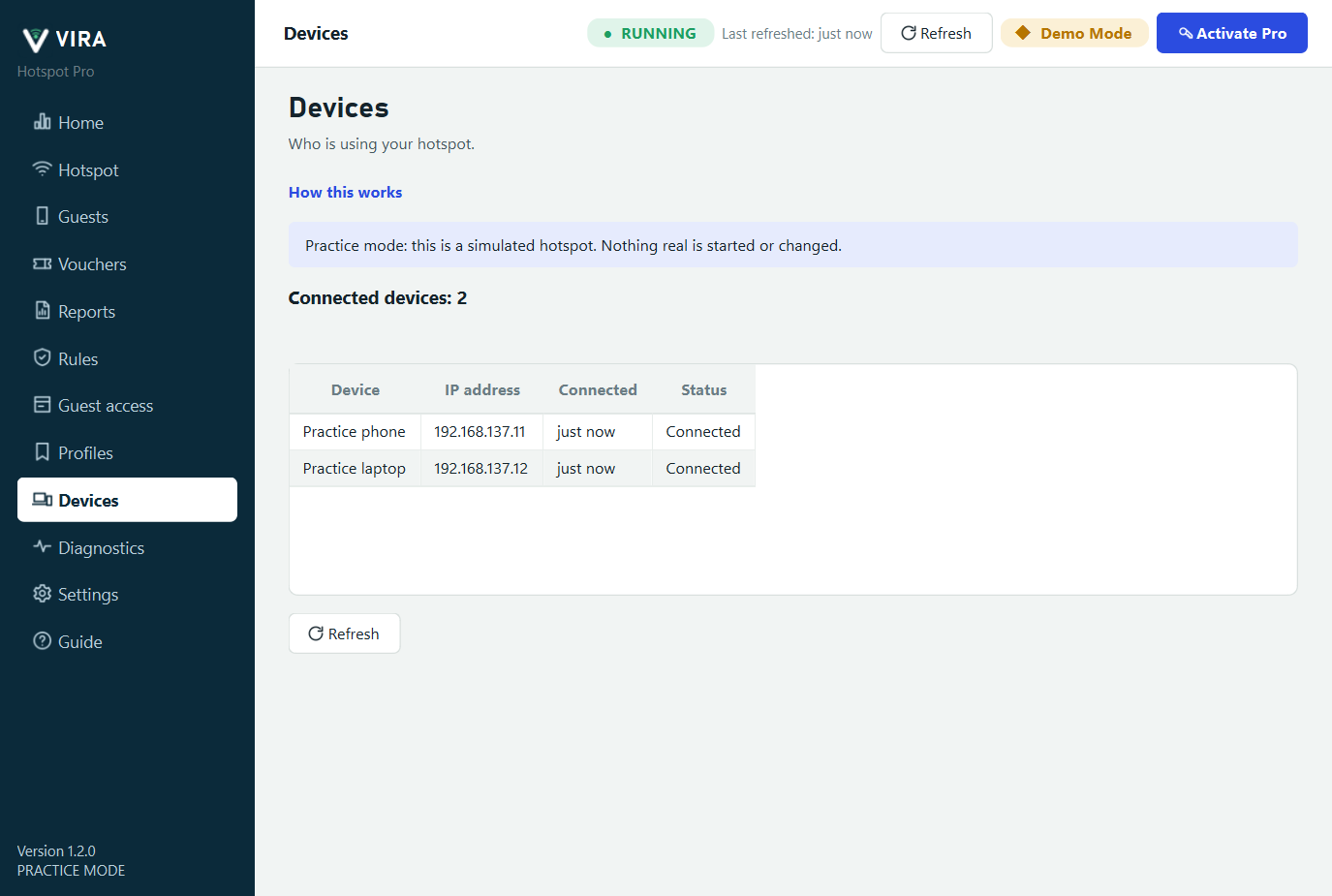
Who is connected
Devices, addresses and how long, when Windows reports it. When it cannot, VIRA says so.
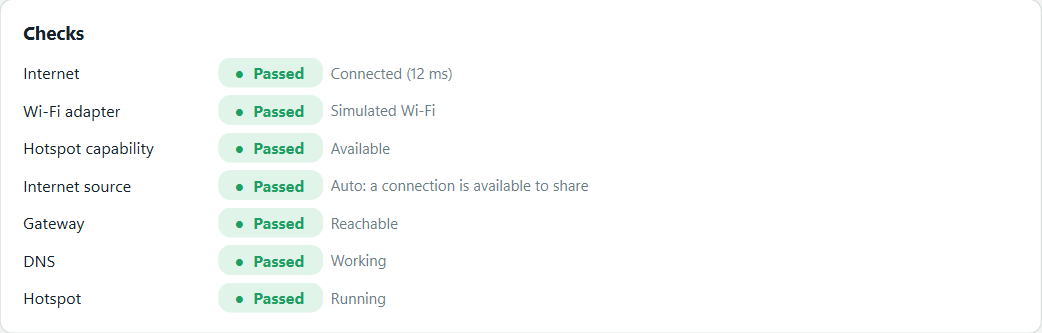
Diagnostics in plain words
Names the problem (no adapter, no Internet, a VPN in the way) and what to try next.
Safe restore
Remembers Windows' own hotspot settings and puts them back when the hotspot stops.

Private by design
No telemetry and no automatic update checks. Hotspot names and passwords never leave your PC.
Screenshot in Practice mode: a simulated hotspot with sample data.
Everything in VIRA Hotspot Pro
The full list, straight from the app. Where something is early or Windows limits it, we say so next to it.
It keeps itself working
Small things that save a support call. Settings has a switch for each.
Safe restore
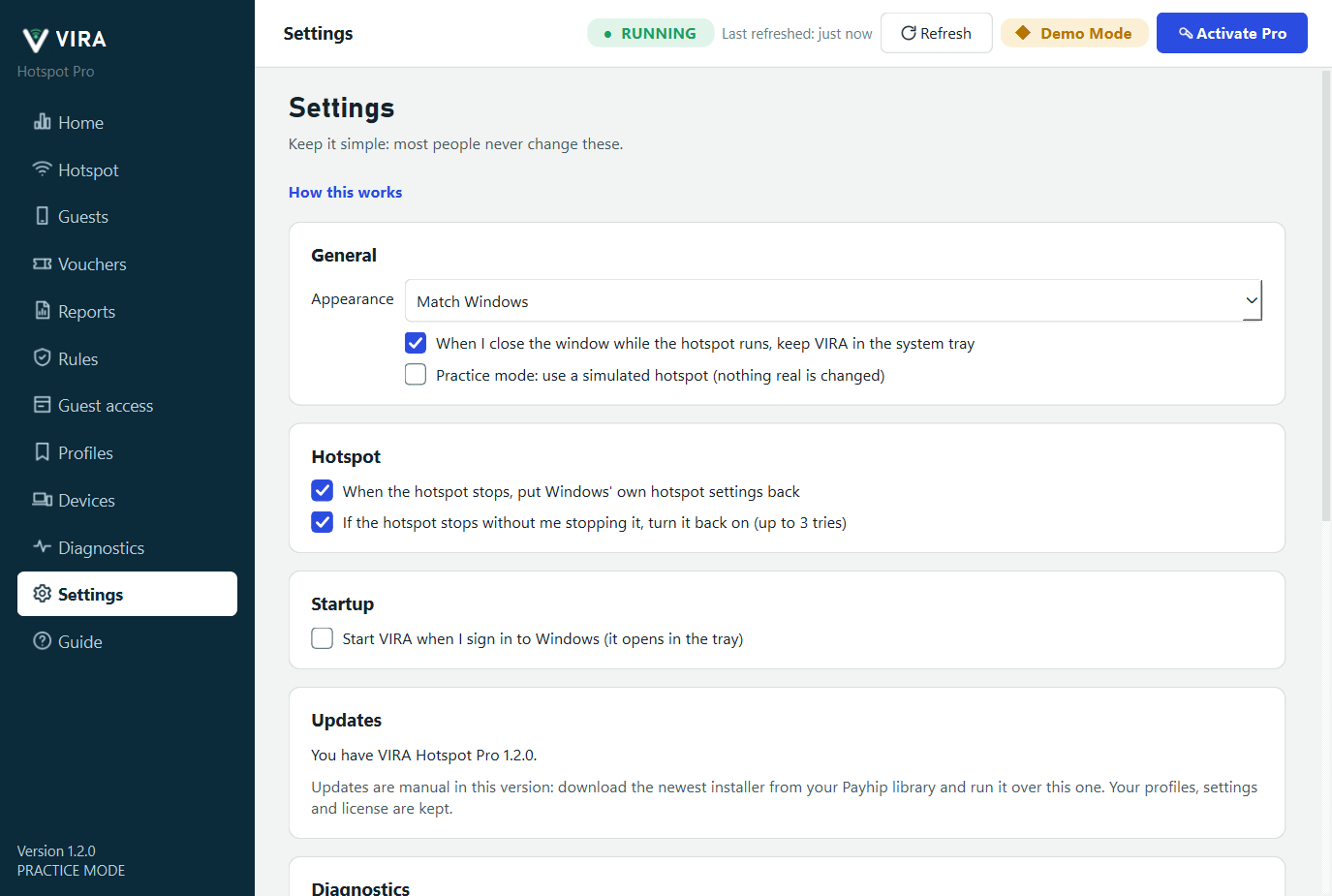
Before VIRA changes Windows' own hotspot settings it remembers them, and puts them back when the hotspot stops. A button restores them any time.
Turns itself back on
If the hotspot stops without you stopping it, VIRA reports it and turns it back on: up to 3 tries, after 10 seconds, 30 seconds and 2 minutes. Then it stops, shows a red banner and a tray notification saying what to check. Pressing Stop is never undone.
Tells you when the Internet is the problem
Losing the Internet behind the hotspot is reported, not pretend-fixed: restarting a hotspot cannot bring a connection back. VIRA says so and tells you again when it returns.
System tray and start with Windows
Close the window and VIRA keeps the hotspot running from the tray. Optionally start VIRA when you sign in to Windows; it opens in the tray.
Light on your PC
One copy runs at a time. On a development PC it opens in under 2 seconds and uses about 170 MB of memory at start.
Find out why, in plain words
Free in every edition.
Diagnostics
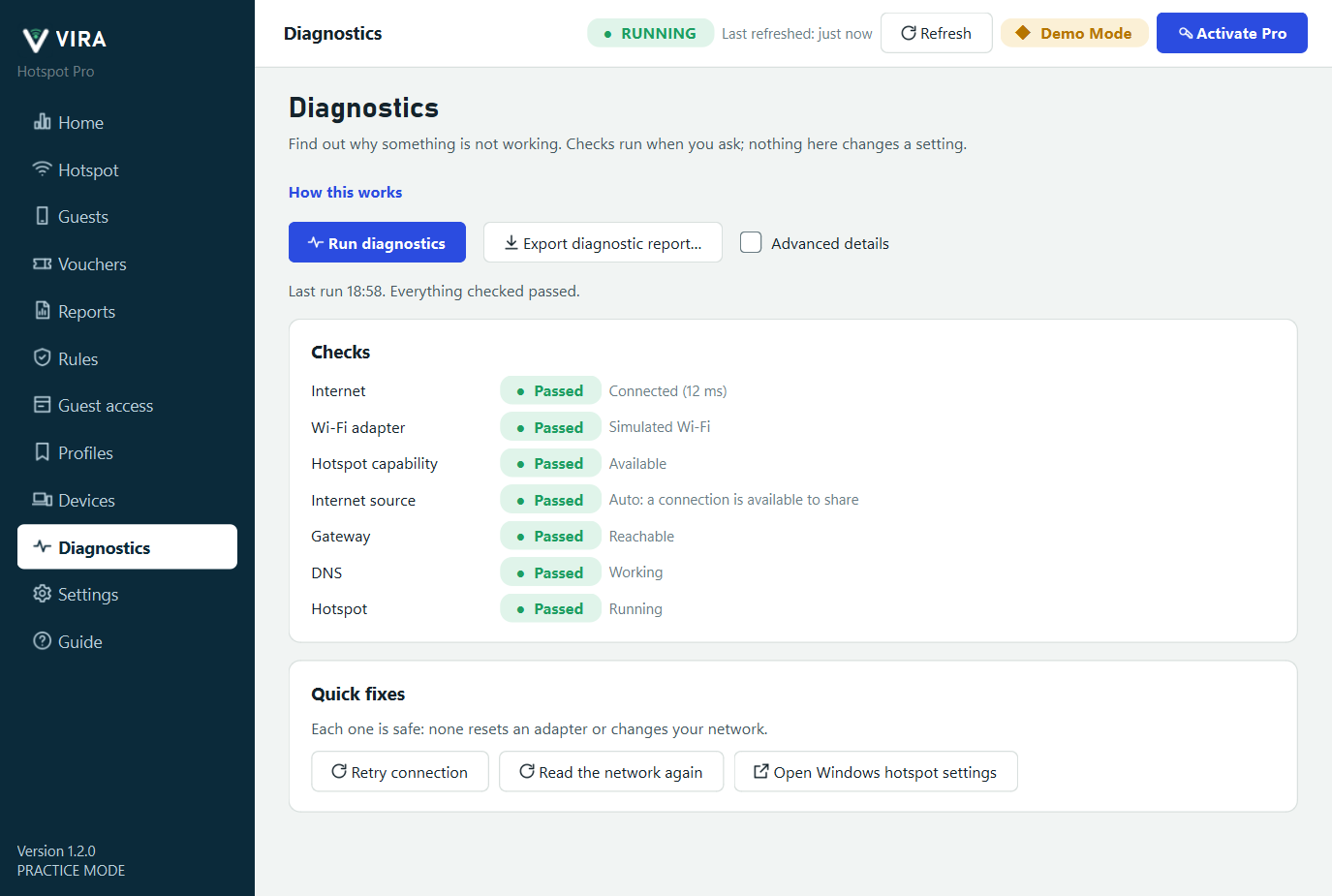
Seven checks run when you ask: Internet, Wi-Fi adapter, hotspot capability, Internet source, gateway, DNS and the hotspot itself. Each says Passed or what is wrong and what to try. Nothing here changes a setting.
Safe quick fixes
Retry connection, Read the network again, and Open Windows hotspot settings. None resets an adapter or changes your network.
Support report
One click makes a zip for support. Passwords, license keys, e-mail addresses, the end of device addresses and your Windows user name are removed before it is saved where you choose.
A built-in guide
A topic for every screen (what it is for, how it works, what it cannot do), a search box, and problem pages: a phone joins but has no Internet, 5 GHz does not start, the hotspot will not start, guests are not held at the login page. Every screen has a How this works link, and a short welcome appears on first run.
Guest Wi-Fi for shops, cafes and events
Pro, and free to try in Practice mode. Early: not yet validated on real hotspots and phones.
A login page for guests
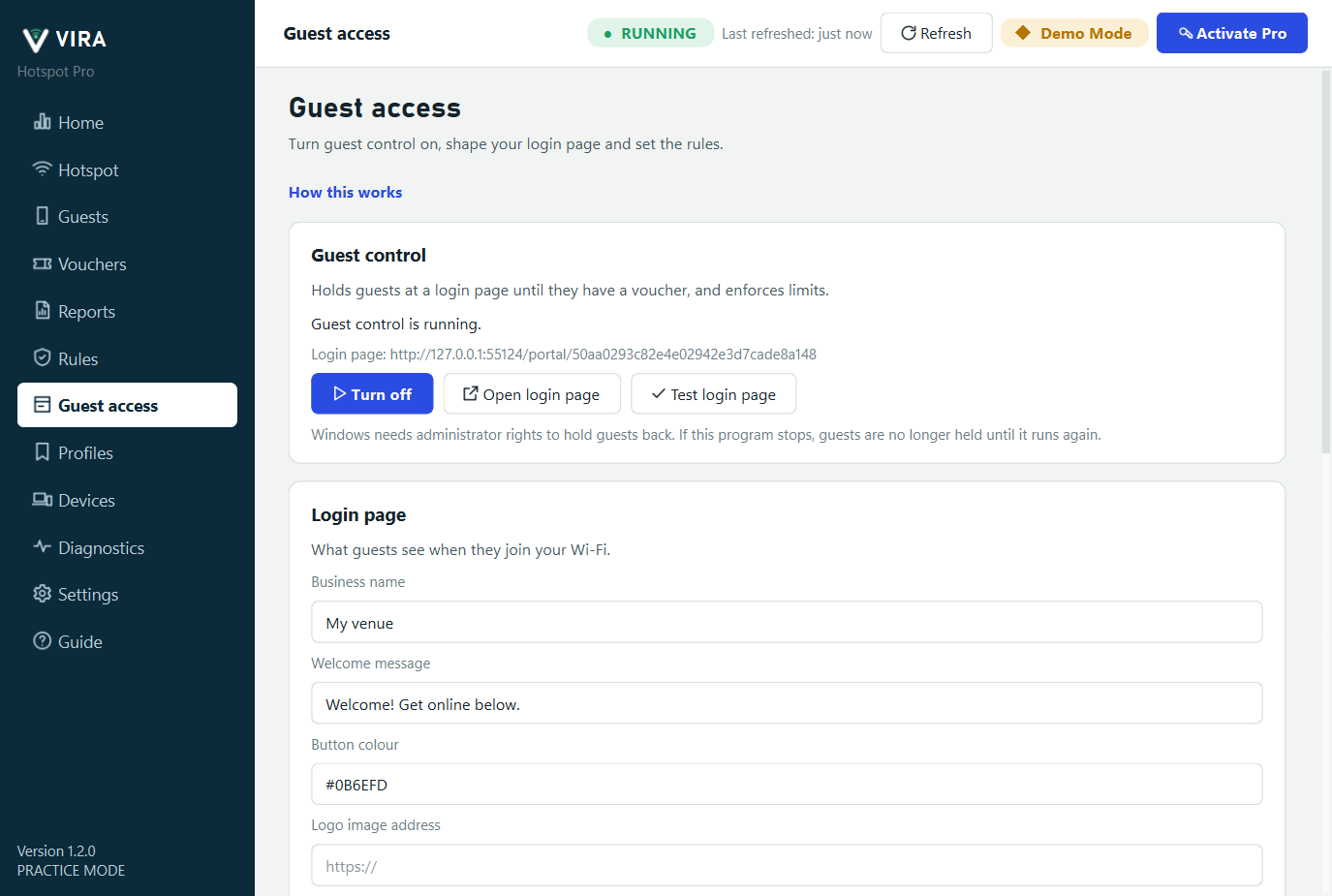
Guests who join your Wi-Fi are held at a page until they enter a voucher code (or pay, if you set that up). Phones show their normal sign in to Wi-Fi prompt.
Your branding
Business name, welcome message, button colour, logo and terms.
Guests
See who is online, who is waiting at the login page and who is blocked. End a guest's access (they return to the login page) or block a device until you unblock it.
Time, speed and data left
A signed-in guest sees their time left (counting down), their speed and the data they have left, refreshed every 15 seconds while the page is open.
Vouchers and printed cards
Make plans (time, optional data allowance, speed limits, optional price) and print cards in batches, or save them as PDF or CSV. A card shows the code, what it gives, and two QR codes: one joins the Wi-Fi, one opens the sign-in page with the code filled in. A code works once; revoke any you do not want used; search and filter by unused, active, used, expired or revoked.
Reports
Sessions, data use and voucher reports for the dates you choose, with CSV files for your accountant.
E-mail summary
Get a daily or weekly summary by e-mail at the time you choose, sent from your own mail account. Send a test or send one now; a summary sent by hand counts for today. Needs guest control on to have numbers to report.
Alerts and activity
Pop-up alerts when too many devices are connected or traffic gets heavy, and an Activity list of devices joining and leaving, the hotspot starting and stopping and e-mails sent. Filter it by type or dates, and clear what you no longer want.
Needs administrator rights and the packet driver that ships with VIRA. It adds one narrow Windows Firewall rule for the login page and removes it when it stops. If VIRA is closed, guests are no longer held back until it runs again. Windows' hotspot cannot keep guests apart from each other.
Rules: who may connect and what they may reach
Pro. Applies while guest control is on.
Device filter
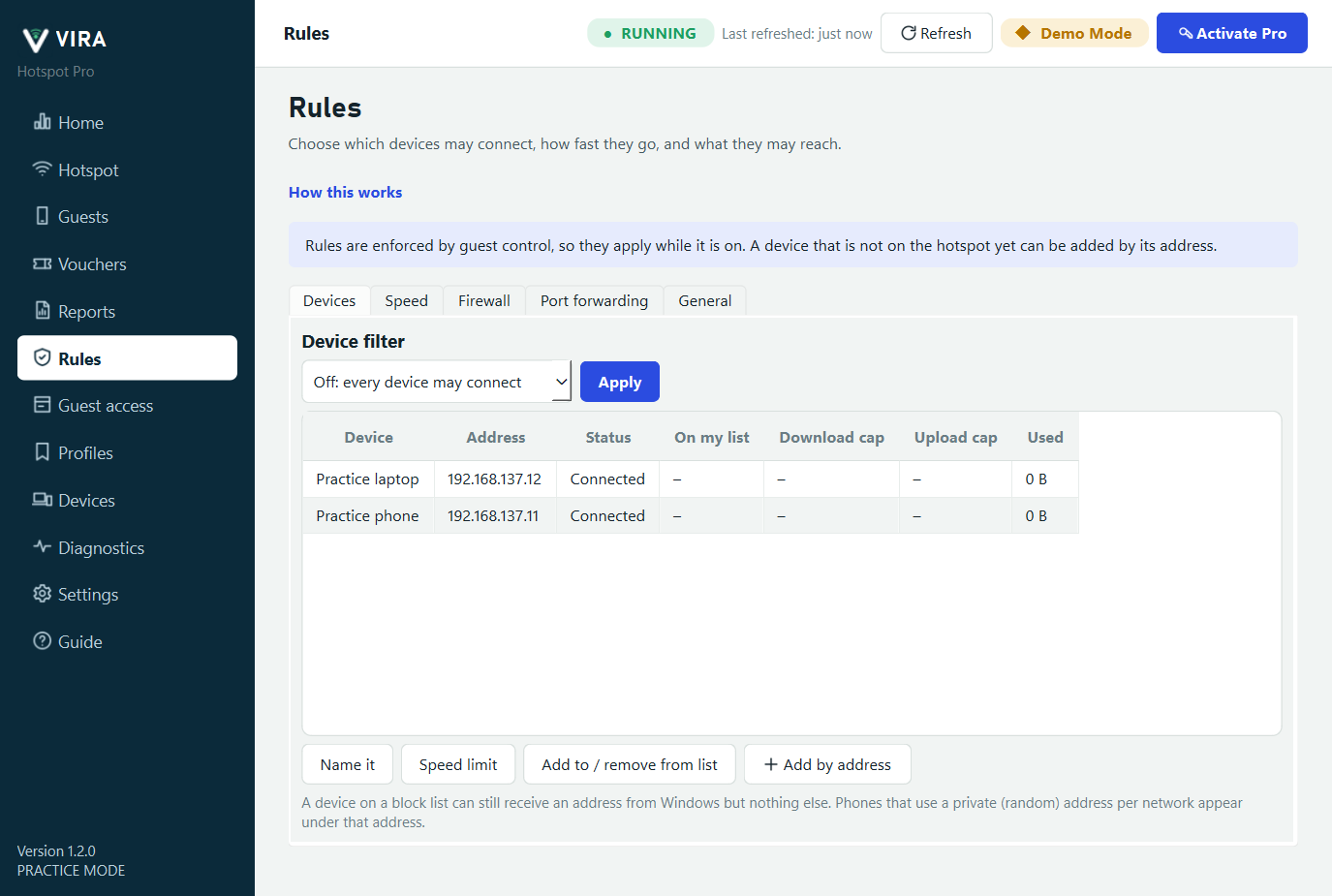
Block the devices on a list, or allow only the devices on a list. Give a device a name, or its own download and upload limit. An allow-only list that is empty is refused so you cannot lock everyone out.
Speed ceiling
One download and upload limit for every device, on top of any plan. Excess packets are dropped, so rates settle near the limit.
Firewall
Block ports and ranges, with one-click lists for file sharing, mail and remote desktop, and block websites by name. A device that uses its own DNS or a VPN can get around website blocking; port blocking cannot be bypassed that way.
Port forwarding
Let the Internet reach one device on your hotspot (TCP only). Each forward opens one narrow Windows Firewall rule, and VIRA removes only the rules it created. Needs administrator rights.
Open hotspot and sharing
Run without a login page while the rules still apply, let devices reach this PC's shared folders, and get a notice when a device joins or leaves.
Windows cannot do UDP forwarding, bridge mode, a different address range for the hotspot, or keeping devices apart from each other, so VIRA does not offer them.
License, free trial and updates
How the editions work.
Demo Mode (free)
Every screen works. Network detection, diagnostics, QR codes, Practice mode and the support report are unlimited. Limits: 2 profiles, real hotspot sessions end after 15 minutes, no start-with-the-app hotspot, and no guest control on the real hotspot.
Free trial: 7 days of everything
Press Start free trial in Settings and every Pro feature unlocks: no e-mail, no sign-up, no card. VIRA recognises the PC from a one-way code of its hardware, so each PC gets one trial, even after a reinstall. When it ends VIRA returns to Demo limits and nothing is deleted.
Pro: $19.99 once, one license, one PC
$19.99 USD, paid once, is a lifetime license with no subscription. A license key unlocks Pro on one Windows PC, with unlimited profiles, no session limit, start-with-the-app, guest access and rules. It is registered to the first PC that uses it. If you replace your PC, write to us with your support code (Settings, License); once we have confirmed it is you, we allow one change and you enter your key on the new PC.
Checks quietly, never locks you out of your data
VIRA renews its license about every 12 hours while online and keeps working through short outages. Nothing you saved is ever deleted when a license or trial ends.
Look, updates and privacy
Light, dark or match Windows. Updates are manual: run the newest installer over the old one and your profiles, settings and license are kept. No telemetry and no automatic update checks.
Every screen
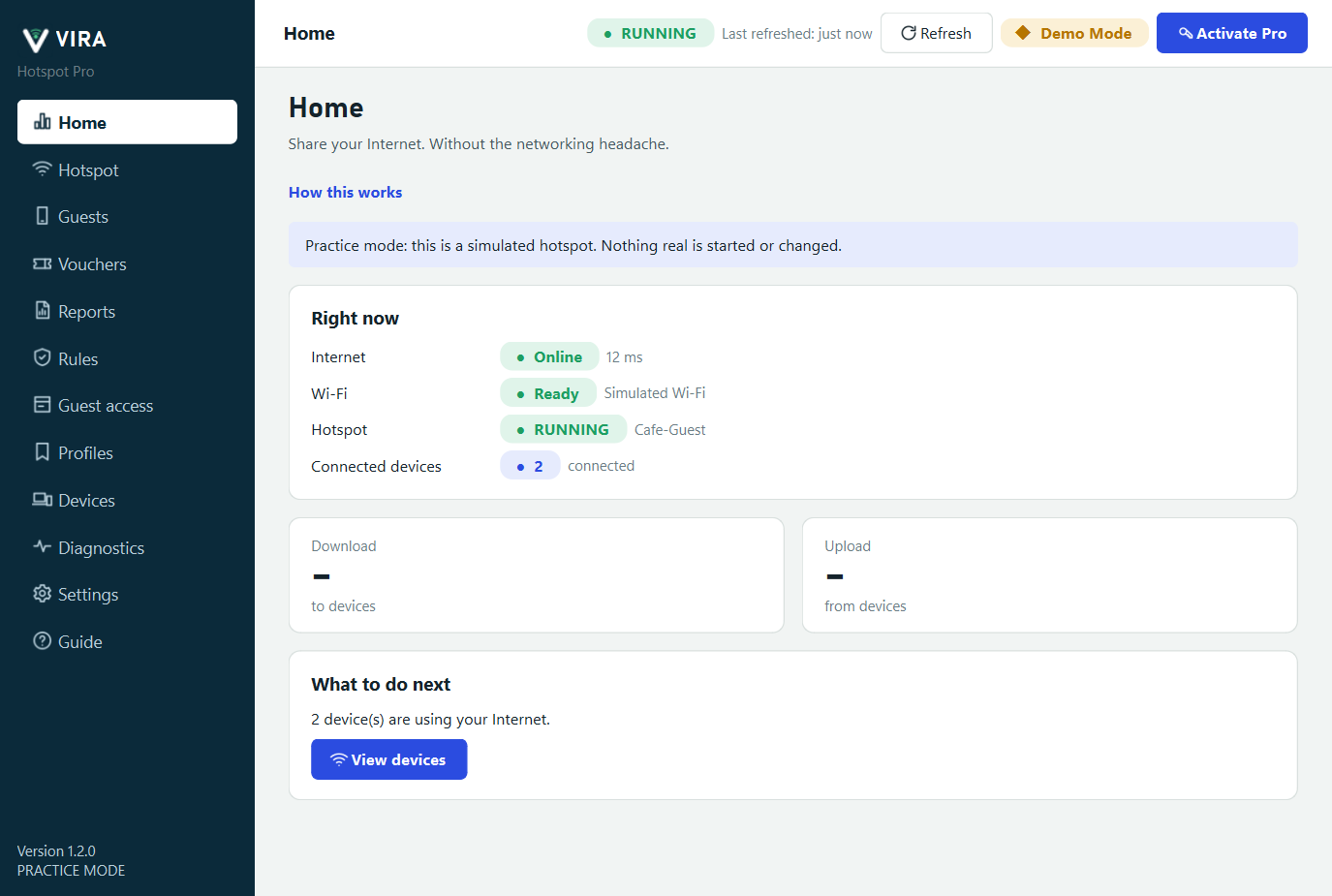
Screenshot in Practice mode: a simulated hotspot with sample data.
Demo, free trial and Pro
| What you get | Demo Mode | Free trial | Pro |
|---|---|---|---|
| Start and stop a hotspot, QR code, devices list | Yes | Yes | Yes |
| Diagnostics, support report, in-app guide, Practice mode | Yes | Yes | Yes |
| Real hotspot session length | 15 minutes | Unlimited | Unlimited |
| Saved profiles | 2 | Unlimited | Unlimited |
| Start the hotspot when VIRA opens | No | Yes | Yes |
| Guest access, vouchers, reports and rules on a real hotspot | No | Yes | Yes |
| Duration | Free, no end | 7 days | Permanent for the version you bought |
| PCs | Any | One trial per PC | One PC per license |
How it works
- Install VIRA and press Start free trial in Settings: no e-mail and no card.
- Choose which connection to share and a profile.
- Press Start and scan the QR code on your phone.
Requirements
- Windows 10 or 11 (64-bit), on a real PC
- A Wi-Fi adapter whose driver supports hosting a hotspot
- An Internet connection to share (Wi-Fi, Ethernet or cellular)
- Not supported inside a virtual machine (VMware, VirtualBox, Hyper-V and similar): VIRA refuses to start there
Price
$19.99 USD, paid once: a lifetime license for one Windows PC, no subscription.
Free trial
All Pro features for 7 days, once per PC, with no e-mail and no card. When it ends the app returns to Demo limits and nothing is deleted.
What it cannot do
VIRA uses the hotspot Windows itself provides. It cannot limit or block individual devices, redirect guests to a login page, or create a hotspot on a PC whose Wi-Fi adapter or driver cannot host one. Behaviour depends on the adapter, driver and Windows version, and VIRA has not yet been validated on a wide range of real PCs, which is why it is early access.
Questions
How does the free trial work?
You get every Pro feature for 7 days. Press Start free trial: there is no sign-up and no e-mail. VIRA recognises the PC, so each PC gets one trial. When it ends VIRA returns to Demo limits and nothing is deleted.
What does a license cover?
One key works on one PC at a time. If you change PCs, write to us and we will move it after confirming it is yours.
Why does my phone connect but have no Internet?
VIRA's diagnostics look for the usual causes: the shared connection is down, a VPN is in the way, or Windows did not enable sharing. It names the one it finds and what to try.
Can I run it in a virtual machine?
No. A hotspot needs a real Wi-Fi adapter, which a virtual machine almost never has, so VIRA checks at start-up and refuses to run inside VMware, VirtualBox, Hyper-V, QEMU, Parallels and similar. A normal PC that merely hosts virtual machines is fine. If VIRA wrongly says your real PC is a virtual machine, write to us.
Does VIRA collect usage data?
No. There is no telemetry and no update checks. See the privacy policy for exactly what the license check sends.
Why is the app asking for my e-mail?
Most PCs start the trial with one click and no e-mail. If yours asks, it could not be recognised by its hardware or a confirmed address is currently required. Check your spam folder, wait a minute and ask for a new code. Codes work for 10 minutes.